Music comes from EdiTed's royalty-free library — no subscription required. Optionally, connect your Epidemic Sound subscription to also search ES tracks.
Install for Premiere Pro in 3 steps
-
1
Download the ZXP InstallerGrab the free ZXP Installer — the standard tool for installing Adobe extensions.
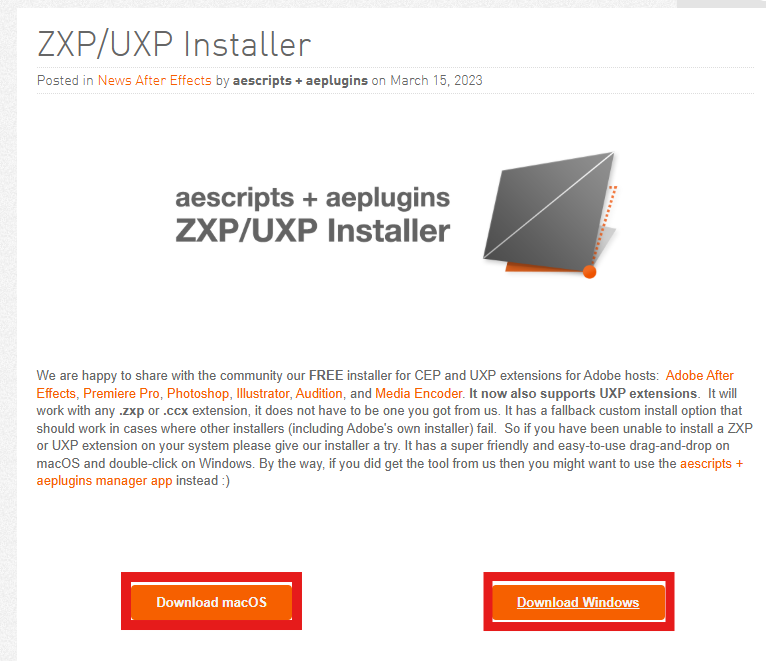 Click the highlighted button, then open the downloaded file.
 -
2
Install EdiTedMusic.zxpDownload EdiTedMusic.zxp and open it with ZXP Installer (or drag it onto the window) to install.
-
3
Open it inside Premiere ProRestart Premiere Pro, then find EdiTed Music at:Window → Extensions → EdiTed MusicYou're ready to find the perfect music for your edit. 🎬
Need help installing? EdiTedMusicMain@gmail.com
Installation steps
- 1Download EdiTedMusic.lua using the button above.
- 2Open DaVinci Resolve and open any project.
- 3In the top menu, go to Workspace → Console.
- 4Drag the downloaded EdiTedMusic.lua file into the Console window.
- 5Restart Resolve, then open Workspace → Scripts → EdiTedMusic.
What happened after you dragged the file in?
✔
It worked
A success message appeared in the Console
⚠
I see a file path
We'll guide you through manual install
Installation complete!
Restart DaVinci Resolve if you haven't already, then open the extension from:
Workspace → Scripts → EdiTedMusic
You're all set — enjoy the music!
Manual install
No problem — this happens when Resolve printed a file path instead of running the script. Follow these steps:
- 1In the Console, you'll see a file path printed. Select it with your mouse.
- 2Right-click and choose Copy (avoid Ctrl+C — it may not work in the Console).
- 3Open File Explorer (Windows) or Finder (macOS) and paste the path into the address bar.
- 4Copy EdiTedMusic.lua into that folder.
- 5Restart Resolve and open Workspace → Scripts → EdiTedMusic.
Typical folder by OS:
C:\Users\<YourName>\AppData\Roaming\Blackmagic Design\DaVinci Resolve\Support\Fusion\Scripts\Utility\
Still stuck? We're happy to help — EdiTedMusicMain@gmail.com